In Dialogflow you can create agent responses in two ways first ‘static’ response by adding details in the console itself for the basic functionality and second is a dynamic response by managing Fulfillment through the web service called webhook service. You can create a more complex and flexible conversation flow by webhook service.
For Dialogflow, webhook service needs to accept JSON requests and return JSON response as per specified guidelines by Dialogflow.
What is the Webhook Deadline?
In the Dialogflow documentation, there are some limitations given to send your webhook response.
The response must occur within 10 seconds for Google Assistant applications.
The response must occur within 5 seconds for other applications.
The response must be less than or equal to 64 KiB in size.
If the above limitations are not fulfilled then the webhook request will time out and give the error: “Webhook call failed. Error: DEADLINE_EXCEEDED”, which you can see in Fulfillment status.
How can we extend the webhook deadline?
As per Dialogflow guidelines given for the “custom event” which can be invoked for time alert during in conversation. This event could help to trigger an intent which alerts the end-user. We are using the concept of the “custom event” for time alert to extend the webhook deadline.
By creating “custom event” we are managing time such that it cannot increase the given guideline “time limitation” for the webhook response (Technically we have 5 seconds time limits per intent to manage the timing). For that, we need to set up the webhook response for “followupEventInput”(Click here to check the “followupEventInput” JSON response). When “followupEventInput” is set for the webhook response, Dialogflow ignores all other fields of response as given in Dialogflow documentation.
Here we extend time up to 10 seconds by creating a chain of two “followupEventInput” for the welcome intent. Follow the below instruction to implement it.
Install Virtual Environment by using below command:
sudo apt install virtualenv
Create and Activate Virtual environment:
Run below command to create a virtual environment.
Basically, in the code, we are creating a chain of two “followupEventInput” for “welcome intent” means total three intents are created one “welcome intent” and two intents for the “followupEventinput”. From the last intent, we have got the webhook response if it accurately works.
We are making one condition by comparing the current time with the extended time of 3 seconds for generating a normal webhook response and managing per intent calling time. And then we break this condition by adding a time delay of 3.5 seconds per intents so that “followup” event occurs for a particular intent. You can also play with the command “time.sleep()” to increase delay, but for us, it accurately works for the value of 3.5 seconds.
DialogFlow Setup:
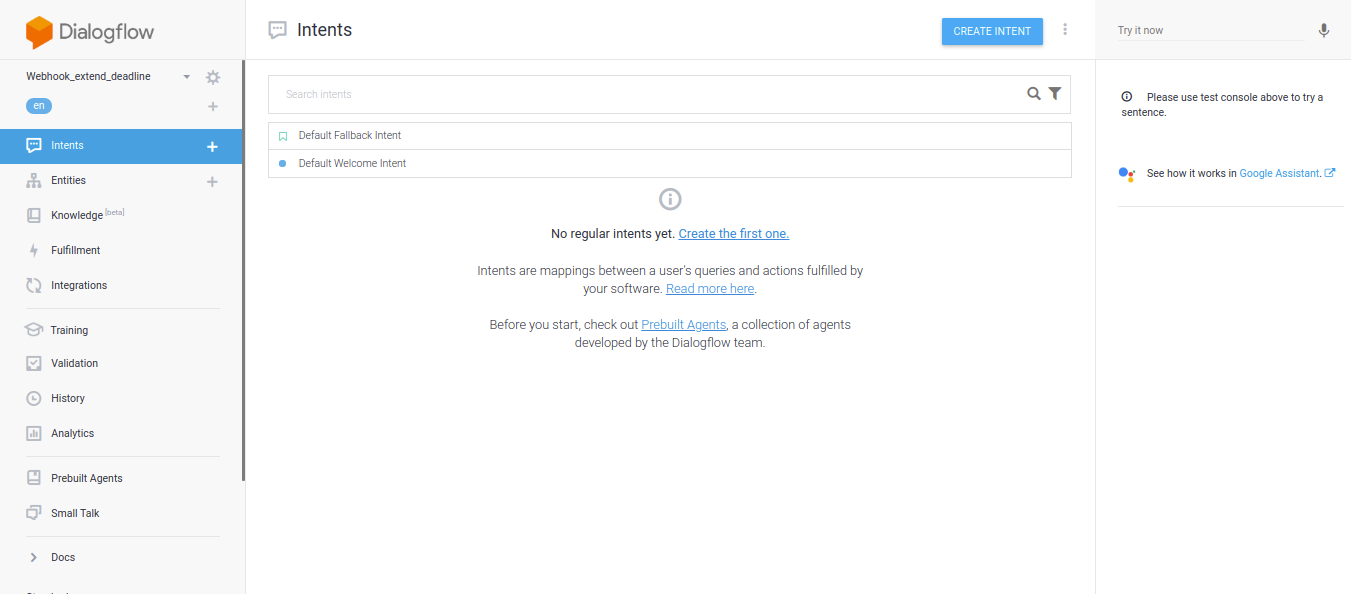
Sign-in into Dialogflow console and create a new agent. Give the Agent name as you like. You will find the below screen for the new agent:
Now click on ‘Default Welcome Intent’ enable webhook response as shown in the below screenshot:
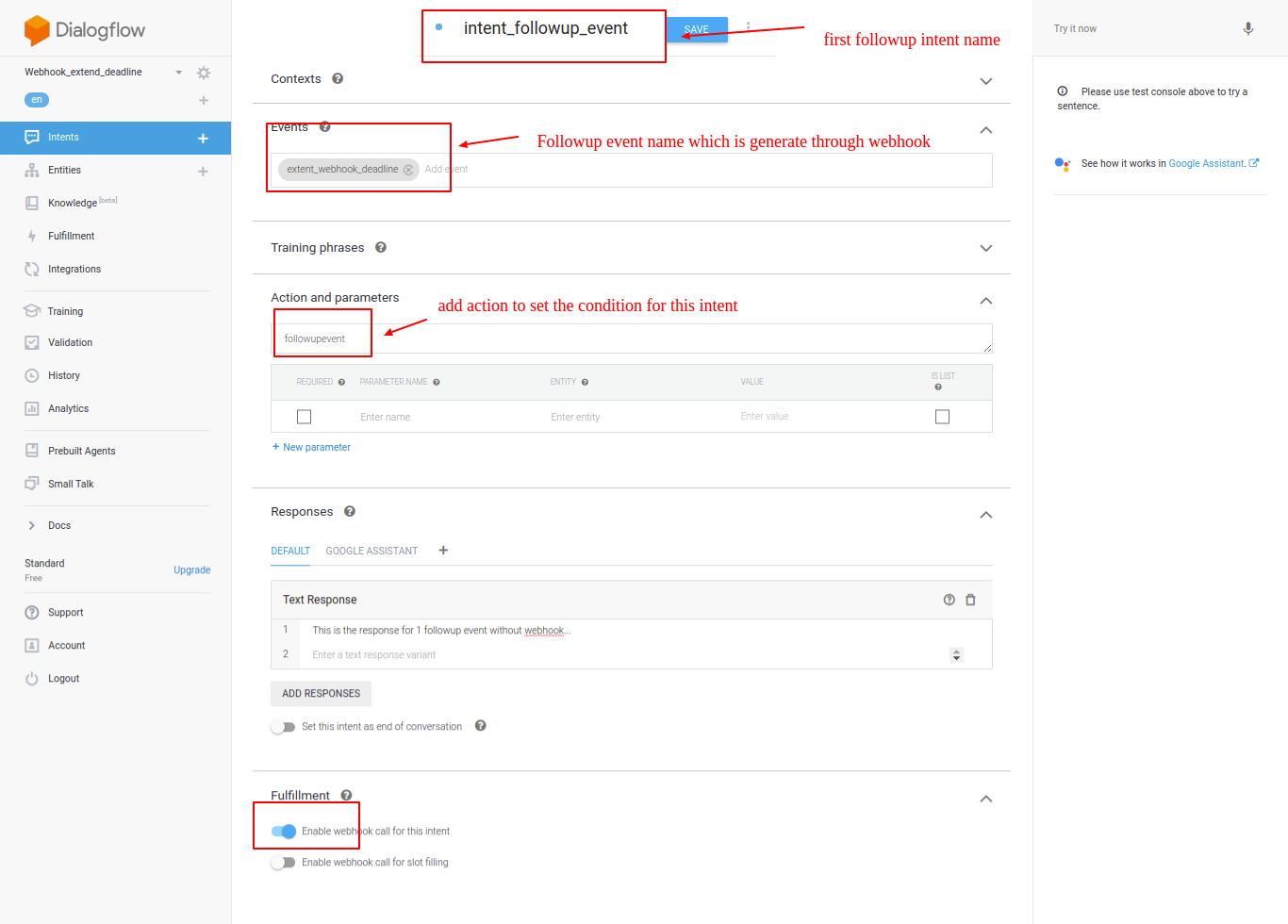
Create a first intent followup_event by filling below details. In that details the event name set inside the code and Action and parameters value we are using in code for making the condition.
Create other intent for followup event number 2 by giving below details as shown in the screenshots.
Run below command to start ngrok and you can see the below screen:
./ngrok http 5000
Add Fulfillment in Dialogflow:
In the DialogFlow left side menu click on the ‘Fulfillment’ then enable ‘Webhook’ from the main page of Fulfillment.
Now add the URL with ‘/webhook/’ like https://55a98356.ngrok.io/webhook/ then save it. If you provide a URL without a webhook then you may get an error like “Webhook call failed. Error: 405 Method Not Allowed.”.
Testing in Dialogflow Simulator:
Now run the code snippet for extending the webhook deadline in the command terminal.
By testing in Simulator with ‘hi’ you will find the below screen for Dialogflow.
By clicking on “DIAGNOSTIC INFO” and in that “RAW API response” you will find accumulated webhook latency time near 13 seconds as shown in the below screen. Sometimes if latency time for webhook per intent is larger than 5 seconds then output may not come from webhook for the followup event.
By using followup events we can extend the webhook deadline limit.
Pragnakalp Techlabs: Your trusted partner in Python, AI, NLP, Generative AI, ML, and Automation. Our skilled experts have successfully delivered robust solutions to satisfied clients, driving innovation and success.